Objective
How to install and configure the Onyx Chrome Extension in Chrome/Edge Browser.
Steps
Download the repository from: https://github.com/onyx-dot-app/onyx-chrome-extension/archive/refs/heads/main.zip or here:
Decompress the file by double click on it.
Install extension via the chrome browser
Open a Chrome tab and type:
chrome://extensionsEnable Developer mode

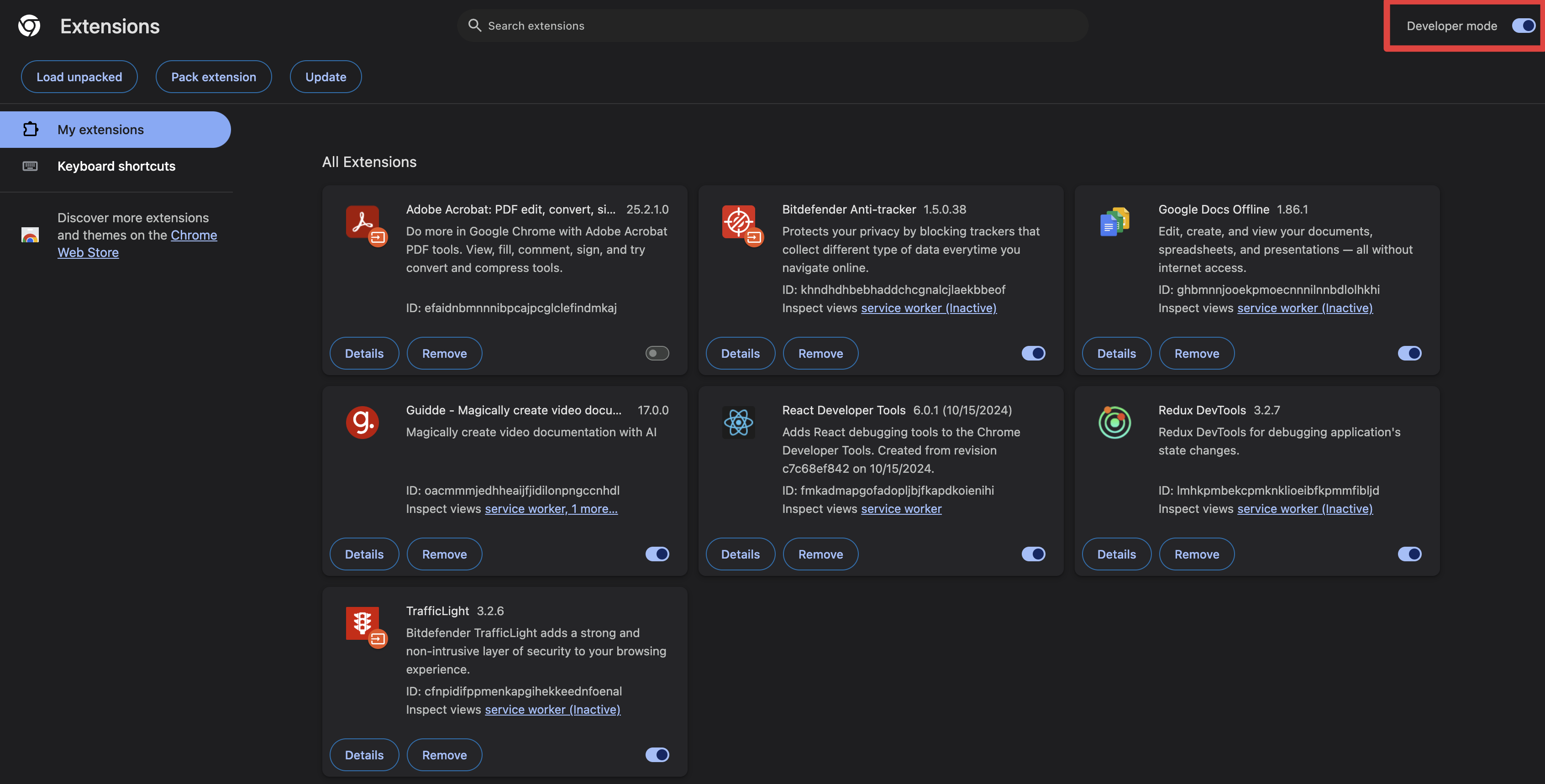
Click on
Load unpackedbutton
Select the previously decompress extension from step 1 and 2 and click
Selectbutton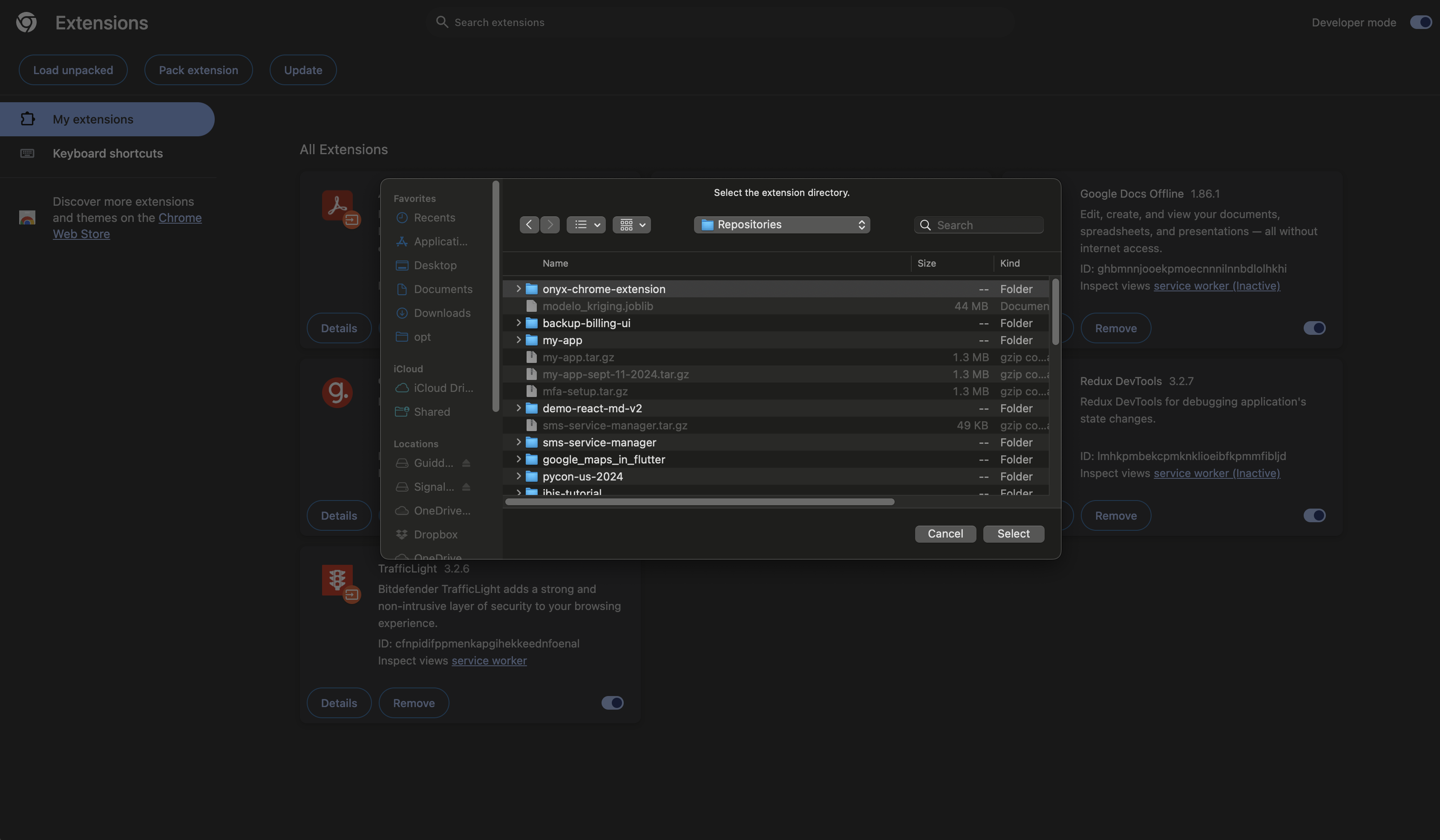
Pin the Onyx Extension from the Extensions Icon
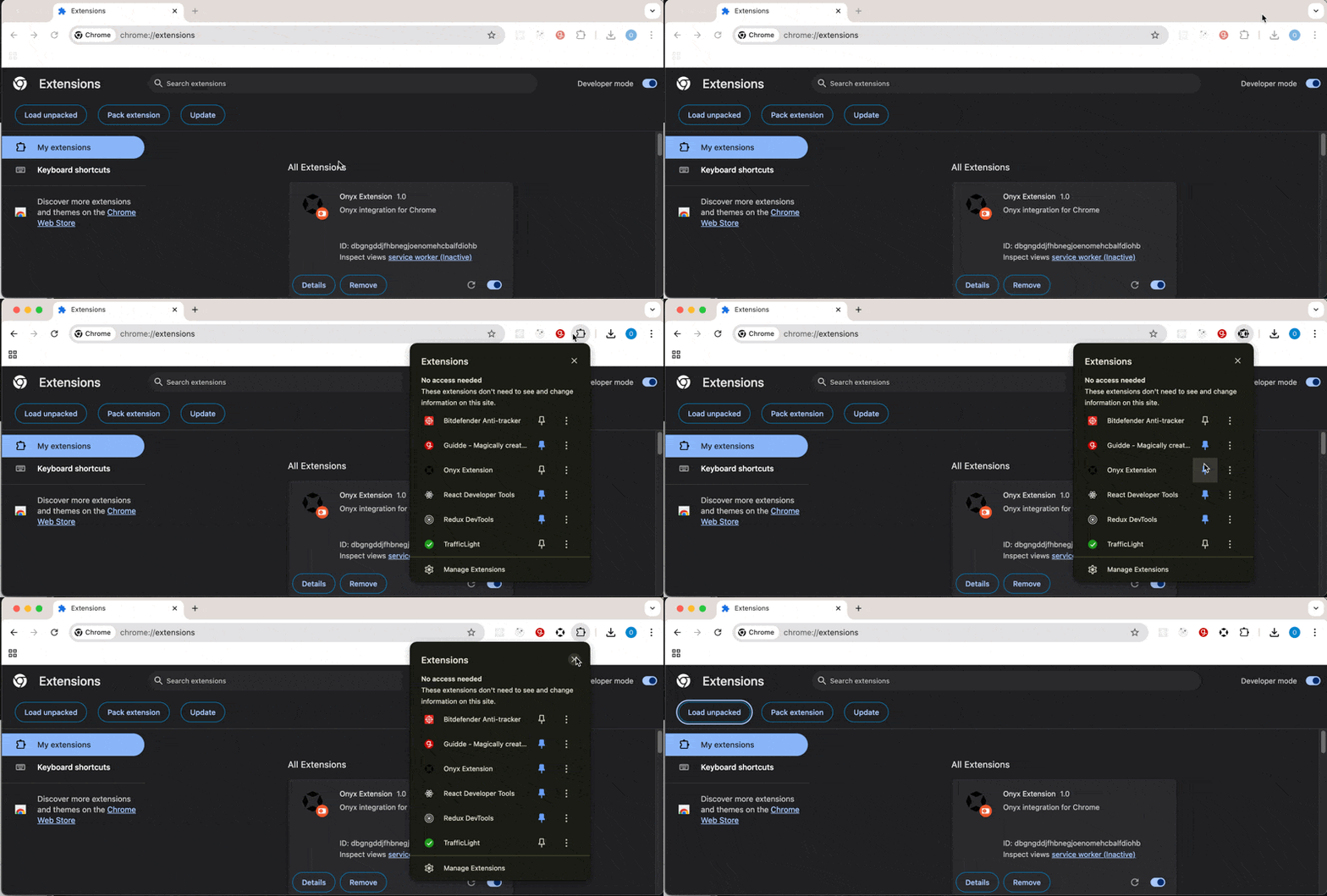
Click on the Onyx Extension
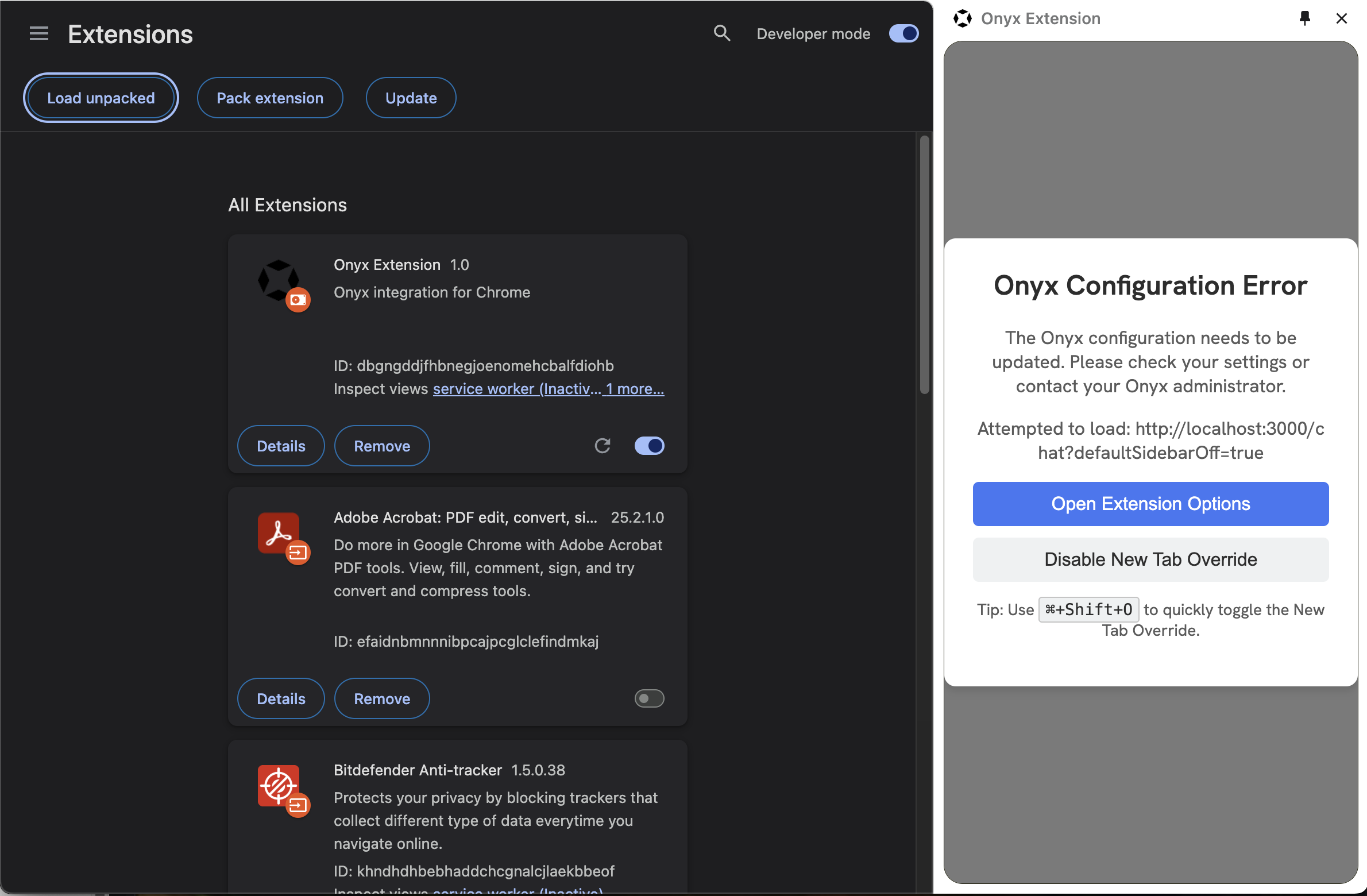
Click on
Open Extension Optionsbutton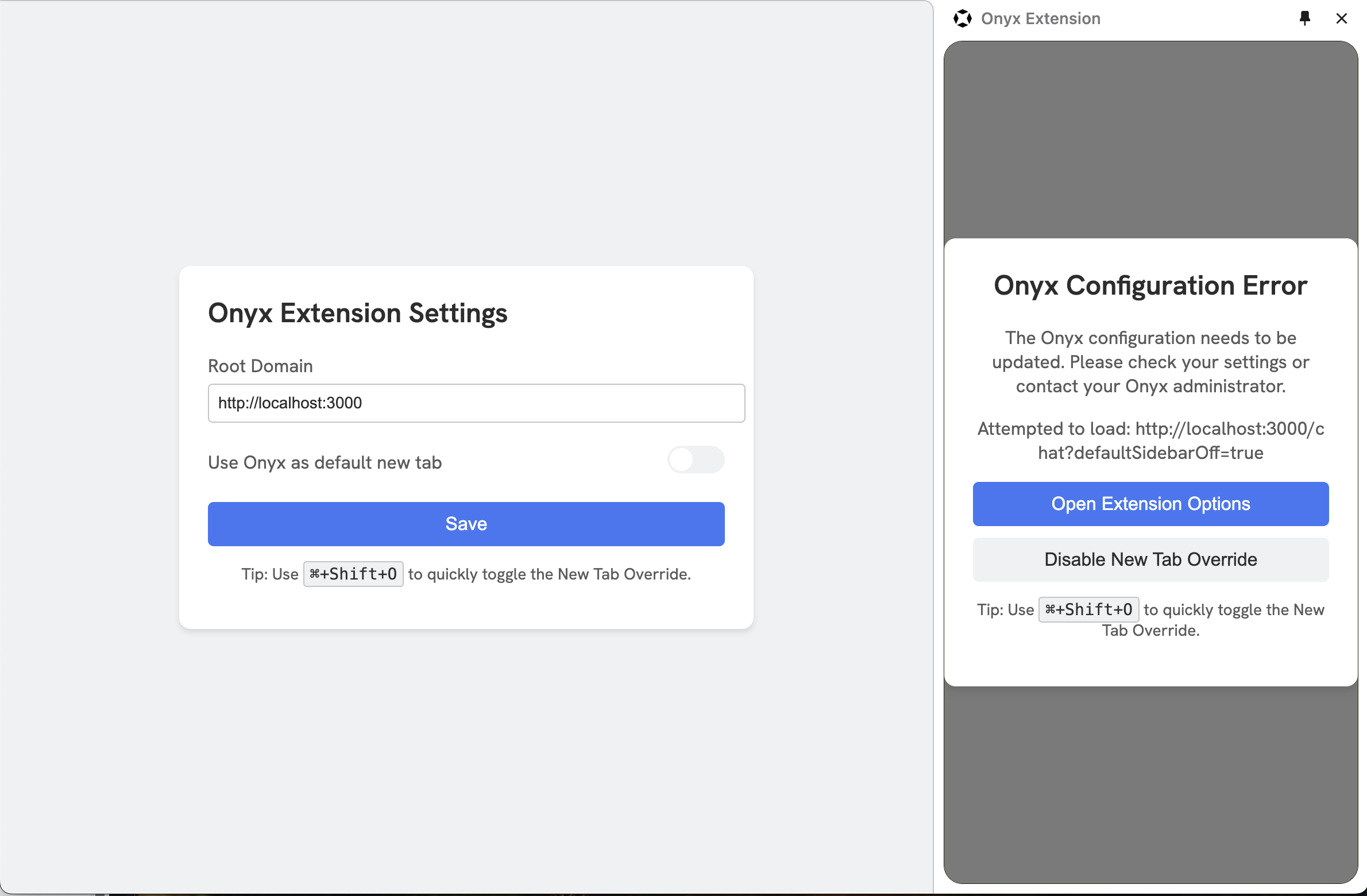
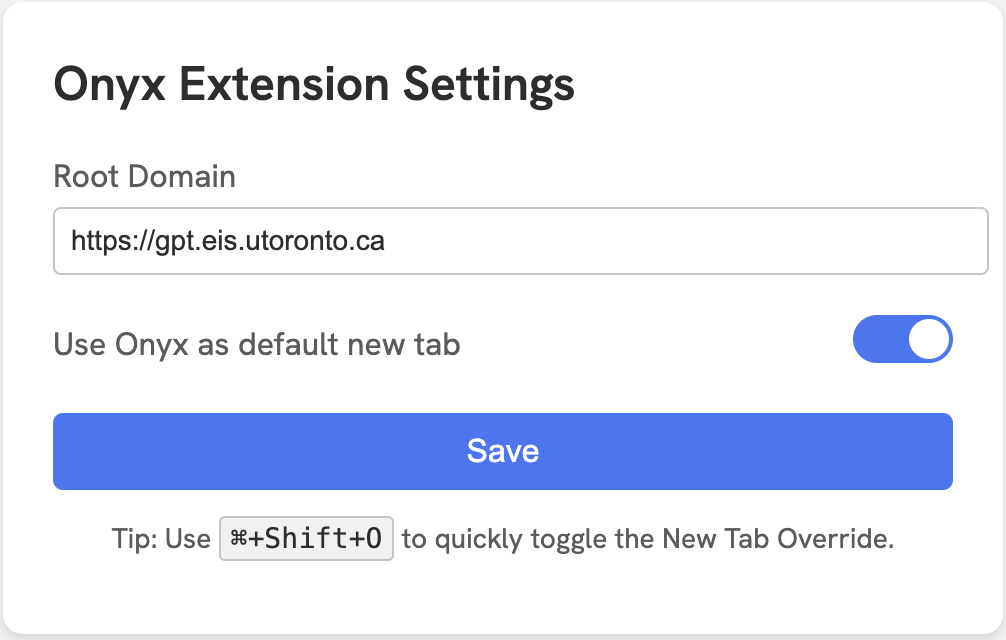
Set the Root Domain of the Onyx Extension Settings to:
https://gpt.eis.utoronto.caAs an optional you can set Onyx as the default tab
Click on
SavebuttonClick on
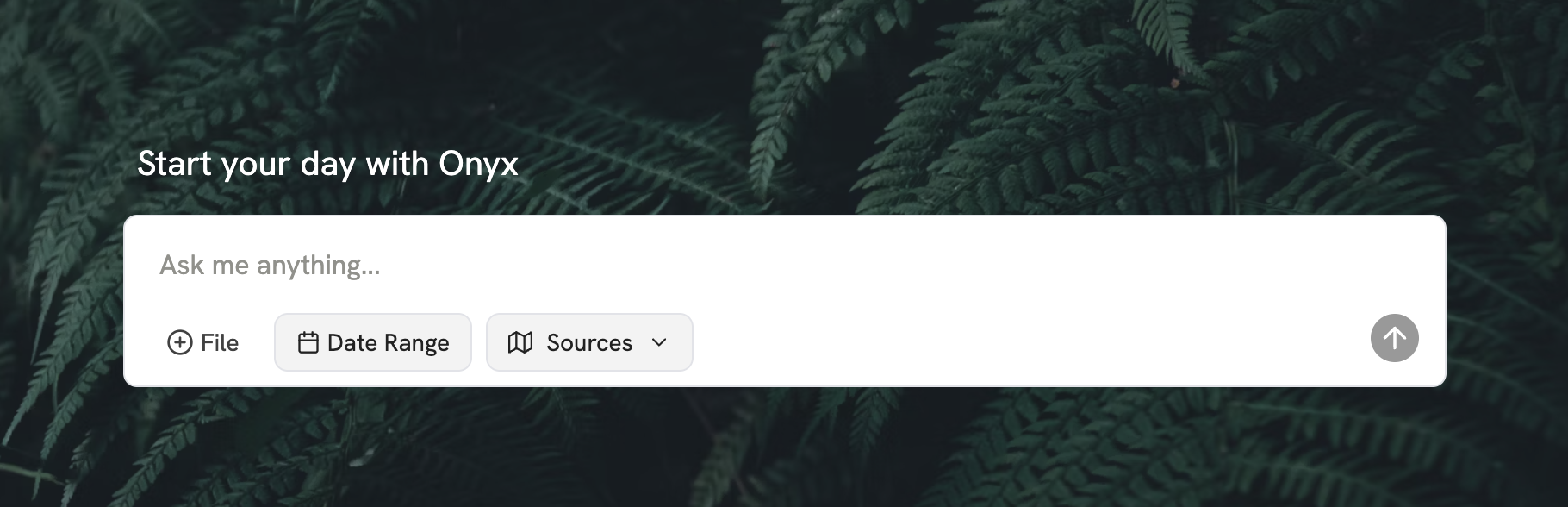
Open New Tab to Testbutton to verify it works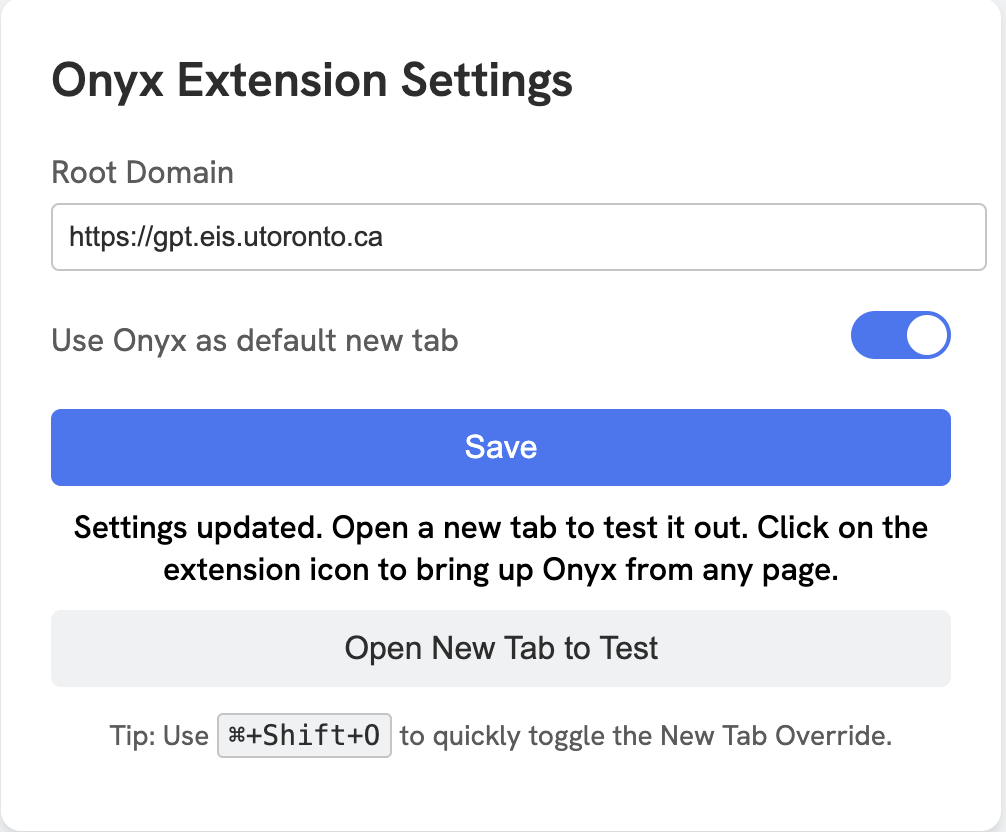
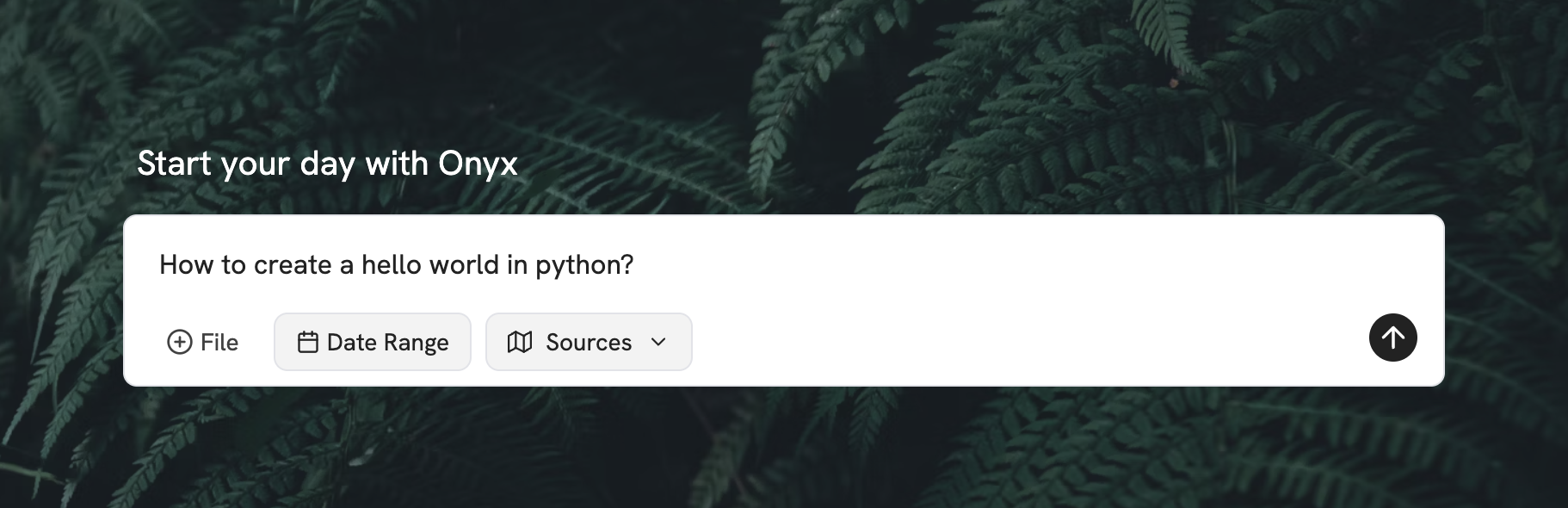
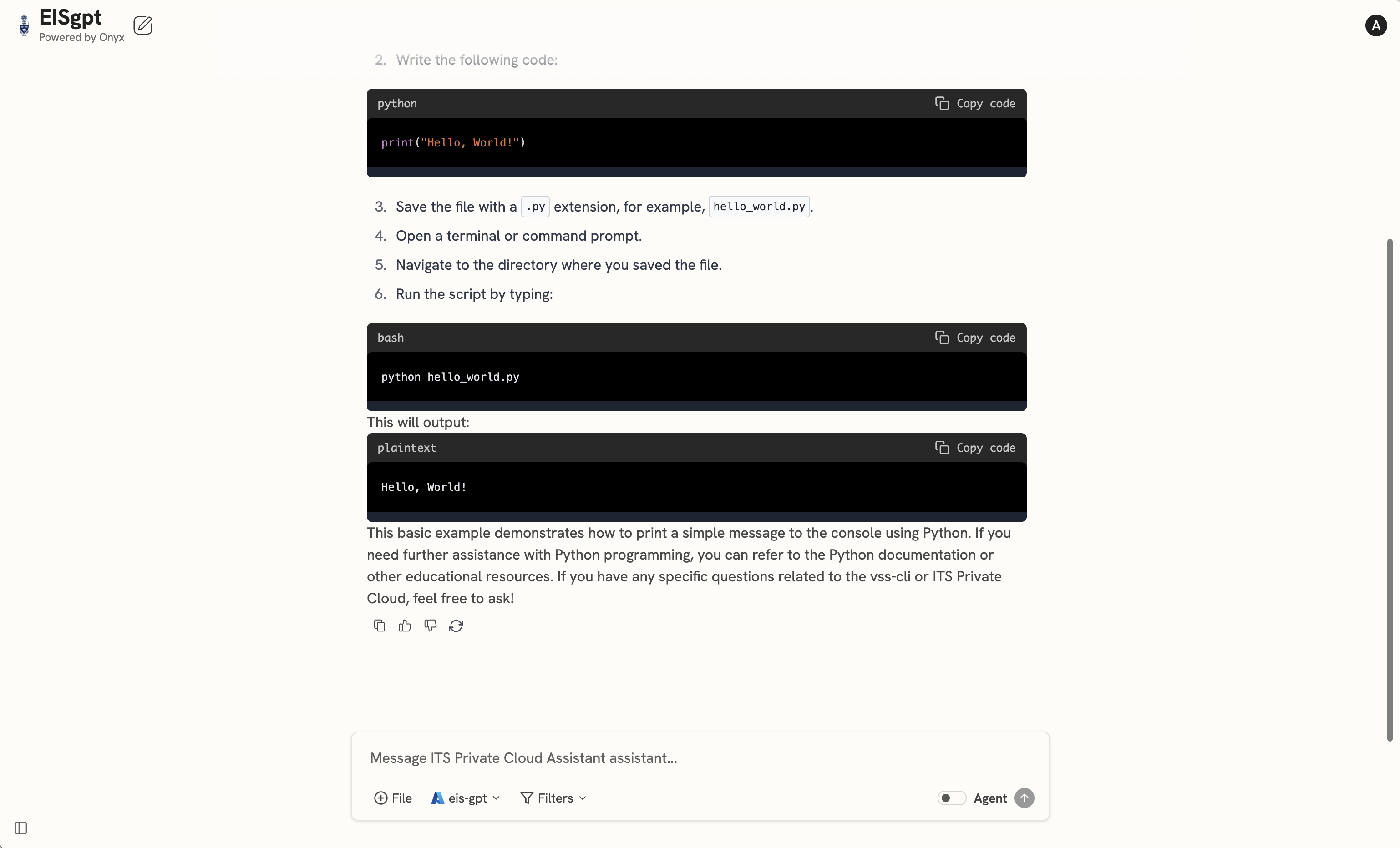
You can proceed and ask any question and see the results
References
Attachments:
 CleanShot 2025-02-07 at 10.27.24@2x-20250207-152724.png (image/png)
 CleanShot 2025-02-07 at 10.30.10@2x-20250207-153010.png (image/png)
 CleanShot 2025-02-07 at 10.32.21@2x-20250207-153222.png (image/png)
 onyx-chrome-extension-main.zip (application/zip)
CleanShot 2025-02-07 at 10.43.20@2x-20250207-154320.png (image/png)
onyx-chrome-extension-main.zip (application/zip)
CleanShot 2025-02-07 at 10.43.20@2x-20250207-154320.png (image/png)
 CleanShot 2025-02-07 at 10.43.59@2x-20250207-154359.png (image/png)
 CleanShot 2025-02-07 at 10.59.05@2x-20250207-155922.png (image/png)
 CleanShot 2025-02-07 at 10.59.50@2x-20250207-155950.png (image/png)
 CleanShot 2025-02-07 at 11.01.38@2x-20250207-160138.png (image/png)
 CleanShot 2025-02-07 at 11.08.54-20250207-160914.gif (image/gif)
 CleanShot 2025-02-07 at 11.14.08@2x-20250207-161419.png (image/png)
 CleanShot 2025-02-07 at 11.15.20@2x-20250207-161520.png (image/png)
 CleanShot 2025-02-07 at 11.17.17@2x-20250207-161732.png (image/png)
